MultiTaction models can be categorized by their operating systems to three different flavours. The first group consists of "stackable" models that are MT420S, MT550S and MT553UTB. Stackable models need an external computer for running the applications. The second group contains embedded Windows models (MT420W7, MT420W8, MT550W7 and MT550W8). These models contain computer that is running either Windows 7 or Windows 8. The third group consists of embedded Linux models (MT420L and MT550L) that are running Debian "squeeze".
All the embedded models are capable of running the applications on the screen so external computer is not needed for single screen applications.
First, to check that your screen starts up properly, turn it on and observe the sequence of events that follows.
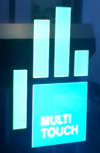
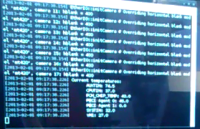
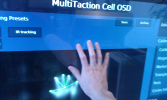
Stackable S and UTB model sequence
| 1. MultiTouch hand logo | 2. MultiTaction logo | 3. Boot text | 4. Progress bar |
|---|---|---|---|
| 
| Few different sets of boot text | 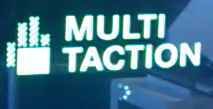
with progress bar filling up |
| 5. Boot window | 6. OSD ready |
|---|---|
| 
|
Embedded W7/W8 model sequence
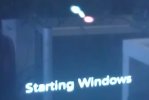
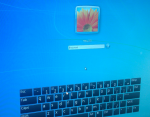
| 1. MultiTouch hand logo | 2. MultiTaction logo | 3. Starting Windows | 4. Windows login |
|---|---|---|---|
|
|
| 
| 
|
Embedded L model sequence
| 1. MultiTouch hand logo | 2. MultiTaction logo | 3. Booting Linux | 4. Linux login |
|---|---|---|---|
|
|
| linux booting | linux login |
For a non-embedded Cell model, these steps assume that the Cell is connected to an external computer with DVI and Ethernet cables. Ethernet cable can be direct, through a switch or LAN. Usage of wireless network is discouraged because the latency it introduces.
If you are going to use Cornerstone or require any of the utilities included with Cornerstone, you should get it from our download page and install the software on your computer. To download the cornerstone software you need a user account on the Cornerstone site. That can be created by filling the registration form.
Selecting Cornerstone version
MultiTouch Cornerstone is available as two versions:
Cornerstone runtime includes handful of stock applications that can be customized easily. The documentation for these applications can be found here.
To update Cornerstone, you need to download new package (either runtime or SDK), and install that on the computer. There is no need to remove the old Cornerstone installation. You can also have multiple versions of the SDK installed at the same time, just specify a different directory for each version.
If you wish to clean up the old installation (for example to save space on the hard-disk), you can do the following:
apt-get/opt/multitouch and /opt/cornerstone-VERSION. 
