Cornerstone includes support for the native Windows touch interface. This Windows native driver is included in both runtime and SDK packages for Windows available from download area. These instructions teach how to install Windows touch capabilities to external computer.
Note: if you have embedded model, the touch driver is already installed.
Installing the Driver
To install the native Windows multitouch driver, you need to:
C:\Cornerstone-VERSION\Win7Driver. Right click the install.bat file and select "Run as administrator". After the driver has installed, reboot the computer. Note that regardless the name this application works also on Windows 8.MTWin7.exe. While that application is running, you can use the native multitouch for Windows.Uninstalling the Driver
To uninstall the driver, you need to:
Notes
The native Windows driver only works with a single Cell at the moment. This due to limitations in the Windows Touch interface, that only supports single touch display per Windows computer.
Please take into account that the vast majority of Windows applications do not support multitouch, especially if there are multiple users at the same time. This option is more relevant for people who are planning to develop their own multitouch applications.
However, Microsoft Paint does support multitouch input and can be used to test the driver has been setup correctly.
The config.txt and screen.xml files are used to connect to the tracker and configure the screen.
config.txt and screen.xml are in %APPDATA%\MultiTouch directory, e.g., for a user named Joe, the directory would be C:\Users\Joe\AppData\Roaming\MultiTouchC:\Users\UserName\AppData\Roaming folder is to type %appdata% to the file explorer path bar.config-*.txt and screen-*.xml files can be found in C:\Cornerstone-VERSION\data\Configs directory.After installing the latest drivers, you need to connect all the displays that you are going to use, and reboot the computer. Windows should detect all the displays when you boot the machine, and make them available in the Display Properties dialog (found under Windows Control Panel -> Display):
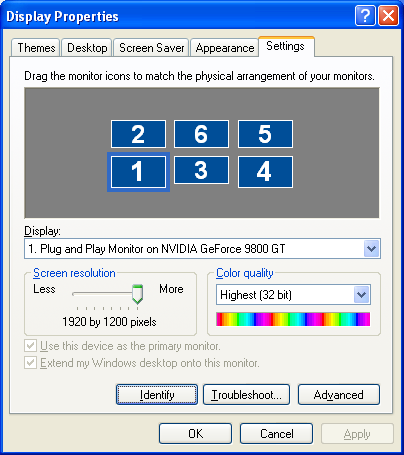
With this display you simply drag the displays to their correct locations. The Identify button is quite useful when you are wondering which physical display matches display number "2" on the screen, for example.

