When defining a drawing surface you need to understand how operating system (OS), area and graphics coordinate systems work together. For simplicity, consider a full HD screen, i.e., 1920x1080 resolution, as shown in the figure 1 below. The upper left and lower right coordinates in OS coordinate system are (0,0) and (1920,1080), respectively. A green rectangle shows the area where the graphics of your application appears and for familiarity the horizonal gray rectangle at the bottom visualizes a taskbar.
To defined the graphics are you need to define window, area and graphics locations and their sizes.
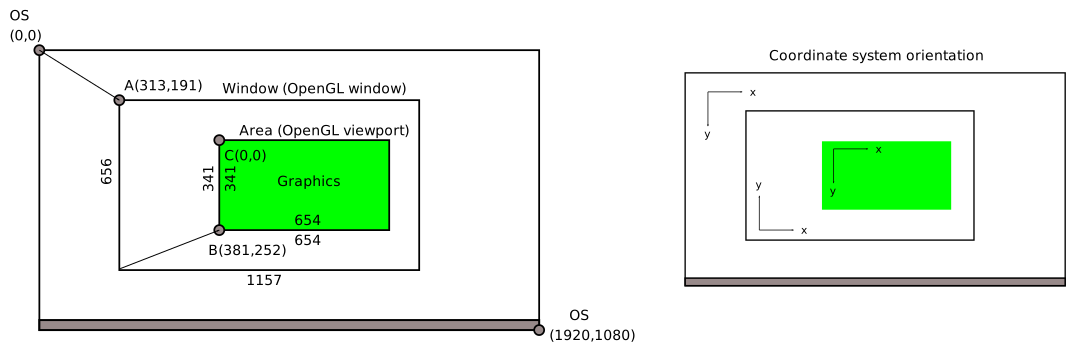
Here's the figure 1 as it would appear in screen.xml file.
Note that the graphics location, point C, doesn't define a location on screen, but an application coordinate that matches to the upper left corner of the area. For example, if your application draws a single pixel to location (-1,-1) with C(0,0), the pixel is not visible since is just outside the visible area. Changing the graphics location to C(-1,-1) makes the pixel visible to the upper left corner of the area.
The graphics size defines a range of application coordinates that map inside the area, but the size doesn't have anything to do with the amount of physical pixels in the area. For example, if your application draws a single pixel to location (654, 341), the pixel is not visible (note that the coordinates start from zero) since it's just outside the visible area. However, if you double the graphics size to (1308,682), then the pixel appears in the center of the area. Graphics drawn to the area is stretched according to graphics size and to avoid unnatural stretching scale width and height evenly.

